Streamline Estimates in Xactimate with Eagleview Reports and ESX Files
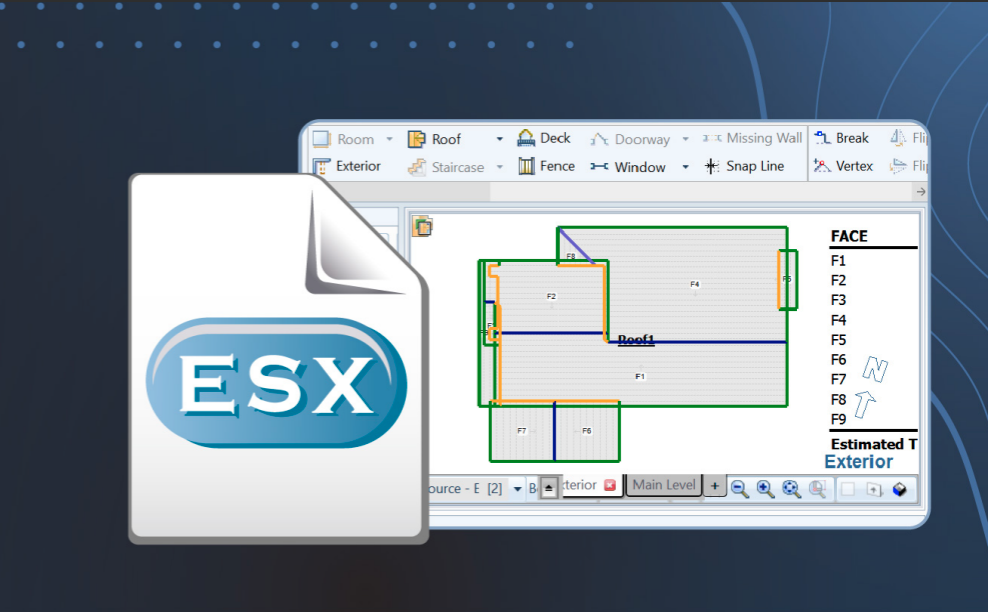
Whether writing an insurance estimate or building a roofing scope, speed and accuracy directly impact how quickly jobs get approved and paid. For roofers and adjusters alike, Xactimate is the industry standard, with the ESX file at the center of the workflow.
For Eagleview users, utilizing ESX files helps streamline complex workflows. Delivering roof data that flows directly into Xactimate eliminates manual rework, reduces errors, and helps accelerate proposal submissions. Ready-to-use ESX outputs consolidate workflows, ensuring everyone starts from the same reliable foundation, helping speed approvals and get projects moving faster.
Now, accessing these files will be even easier. Eagleview users will be able to download an ESX file directly to their Eagleview order—eliminating extra steps and making it faster than ever to move from roof data to a complete estimate in Xactimate.
Now, accessing ESX files is even easier. Add an ESX file directly to your Eagleview report order and move seamlessly from roof measurements to an Xactimate estimate.
For a nominal cost, you can purchase and download ESX files for both new reports and reports already in your order history.
What is an ESX file?
ESX is a digital project file that contains the full estimate associated with a property—measurements, sketches, photos, line items, and pricing—in a format that’s easy to share, review, and approve. It’s formatted for importing directly into Xactimate.
Why use an ESX file?
Roofers and claims adjusters use ESX files to:
- Reduce manual work by cutting down on hand sketching and data entry
- Speed up estimating so you can send proposals or close claims faster
- Import quickly with Xactimate’s drag-and-drop workflow
How to order an ESX file on my.eagleview.com
ESX files are available to order through an Eagleview One subscription. Insurance providers will need this file type provisioned to access.
- Search the property address on myeagleview.com
- Choose your report type: Full House Report or Roof Report
- Check the optional ESX file box
- Click Next, review your order, then select Submit Order
How to download your ESX file
You have two options:
From your delivery email: click the ESX link and save the file to your computer
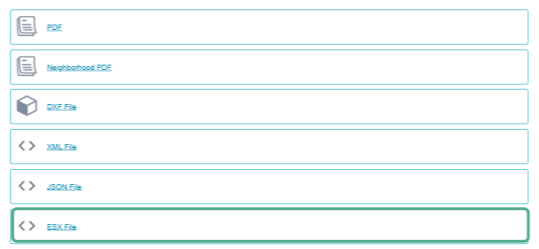
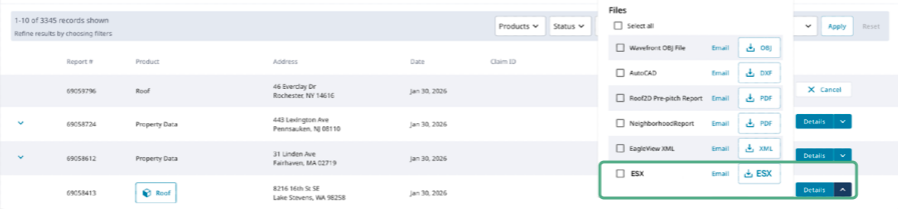
From Order History: open the order details and click Download ESX
How to upgrade previous orders to include ESX files
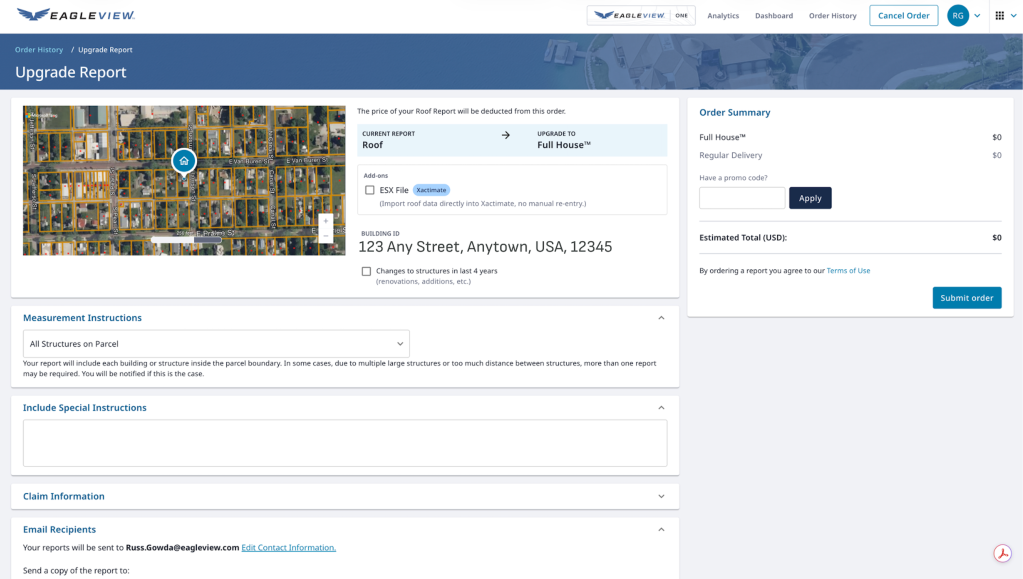
From Order History: Select "Upgrade" from your Recent Orders. Under Add-ons, check the box labeled "ESX File" and then "Submit Order" under Order Summary.
How to import the ESX file into Xactimate
- Open Xactimate and start a new project
- Drag and drop the ESX file into the New Project window, or select Choose File to upload it from your computer
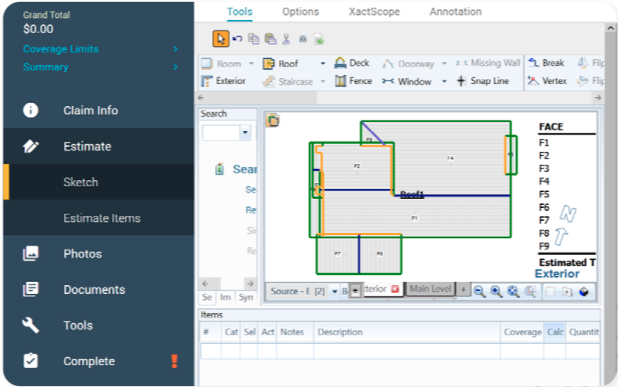
Once imported, your measurements and sketches will be available in Xactimate so you can move straight into your estimate.
For detailed, platform-specific instructions, Verisk provides import steps for both Xactimate Desktop and Xactimate Online.
For additional details on how to access ESX files through Eagleview, we have guides available for both roofers and claims adjusters.
Turn roof data into ready-to-use estimates. Visit myeagleview.com to access your ESX files and keep projects moving forward with speed and accuracy.